Logo
MINECRAFTBIBLE
Items
Items

All game items

Blocks
Blocks

Building blocks

Mobs
Mobs

Creatures & monsters

Biomes
Biomes

World biomes

Structures
Structures

Generated structures

Recipes
Recipes

Crafting guides

Advancements
Advancements

Achievements

Loot Tables
Loot Tables

Drop rates

Tags
Tags

Item groupings

All Versions
View all data →
Capes
Cape ArchiveNEW

Browse rare Minecon capes, OptiFine capes, and custom capes from players worldwide

Browse

Player Database
Player DatabasePopular

Search any player

Skin Browser
Skin Browser

Browse & download skins

Cape Gallery
Cape GalleryNEW

Minecon & OptiFine capes

Seed Vault
Seed Vault

Curated seeds

Learn

Guides
GuidesNew

Tutorials & tips

Blog
Blog

News & updates

Community

Community Hub
Community HubHub

Posts, discussions & more

All Versions
View community →
Seed Analyzer
Seed Analyzer

World seed analysis

Loot Explorer
Loot Explorer

Drop rates

Crafting Calculator
Crafting Calculator

Material planning

Enchant Calculator
Enchant Calculator

Probability math

Redstone Lab
Redstone Lab

Signal timing

Trading Profit
Trading Profit

Villager ROI

All Versions
View all tools →
Mods
Mods

Browse all mods

Plugins
Plugins

Server plugins

Resource Packs
Resource Packs

Textures & sounds

Shaders
Shaders

Visual enhancements

Datapacks
Datapacks

World logic

Scanner
Mod Intelligence

Scan & analyze any mod

All Versions
View all mods →
Loading...
IntroductionIntroductionVersion HistoryVersion HistoryGuidesGuidesBlog & NewsBlog & News
ItemsItemsBlocksBlocksMobsMobsRecipesRecipesBiomesBiomesStructuresStructuresAdvancementsAdvancementsLoot TablesLoot TablesTagsTags
ModsModsPluginsPluginsResource PacksResource PacksShadersShadersDatapacksDatapacks

MinecraftBible

The Ultimate Wiki

Logo
MINECRAFTBIBLE

The ultimate Minecraft reference. Every item, block, mob, and recipe documented with precision.

Community

  • Skin Browser
  • Cape Gallery
  • Seed Vault
  • Blog
  • Guides

Database

  • Items
  • Blocks
  • Mobs
  • Recipes
  • Biomes
  • Structures

Tools

  • Seed Analyzer
  • Mod Intelligence
  • Crafting Calculator
  • Enchant Calculator

Mods & Packs

  • Mods
  • Plugins
  • Resource Packs
  • Shaders
  • Datapacks

Site & Legal

  • About
  • Authors
  • Editorial Policy
  • Corrections
  • Contact
  • Privacy Policy
  • Terms of Service
  • DMCA
  • Sitemap

© 2026 MinecraftBible. Not affiliated with Mojang or Microsoft.

PrivacyTermsContact
PipelessPipes
PluginLicenseRef-All-Rights-Reserved

PipelessPipes

A simple pipesystem without the hassle of laying pipes

40
Downloads
0
Followers
9 months ago
Updated
📦
1
Versions
managementstoragetransportationpaper
Download Latestv1.0.0View on Modrinth

📖About PipelessPipes

PipelessPipes

A simple but powerful item transportation system for your server.

Are you tired of laying endless meters of pipes? Then this is the solution for you!
PipelessPipes is a lightweight plugin that lets you connect containers directly and transfer items from one to another. It supports filtering of items with a whitelist or blacklist to make item management easier and faster. Also you can add an unlimited number of items to your filter.


💡 Features

  • 🚀 Instant container-to-container item transfer
  • ⚙️ Customizable filters
  • ✅ Whitelists & ❌ Blacklists for easy control
  • ⚡ Quick and simple setup
  • ✒️ No long commands required
  • 🌍 Supports English and German (players can choose their own language)
  • 📝 Fully customizable: pipewrench texture, messages, and GUI text

❓ How to use

  1. First, you need a Pipewrench. Get one with: /pipe givePipeTool
  2. Click on any container (e.g., chest, double chest, barrel, furnace, dispenser, dropper, etc.).
  3. (Optional) If you or a player want to change the displayed language (only for themselves) they can do that with /pipe setLanguage <deutsch|englisch>

Define container
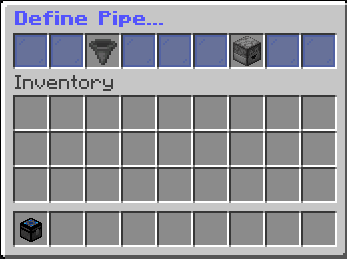
Image that shows the pipe defining gui

After clicking, a GUI will open with two options:

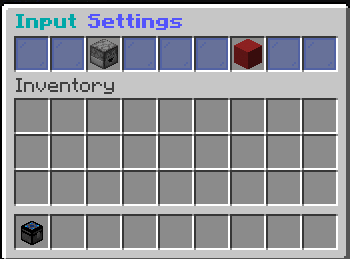
  • Define as Input
  • Define as Output

Input Pipe

Image that shows the input settings GUI

If you set a container as Input, the GUI lets you:

  • Change it to an Output node
  • Remove it from the network

Output Pipe
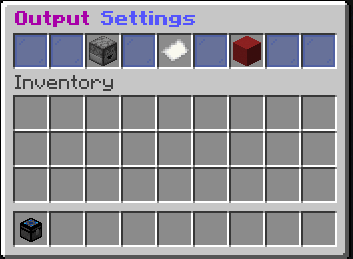
Image that shows the output settings GUI

If you set a container as Output, the GUI lets you:

  • Change it to an Input node
  • Remove it from the network
  • Manage filters

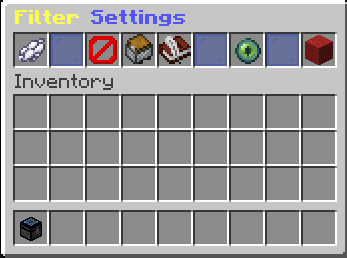
Filters

Image that shows the filter settings GUI

When you open the filter GUI, you’ll see:

  • White-/Black Dye → Switch between whitelist (default) and blacklist
  • Barrier / Item in offhand → Add the item in your offhand to the filter
  • Chest minecart → Add all items from the container to the filter
  • Book → Add items manually via chat command: /pipe addFilterItem [Item] (Replace [Item] with the actual item)
  • Red Wool → Reset the filter
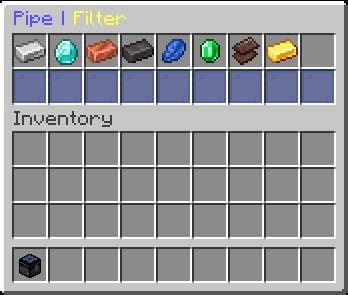
  • Ender Eye → View the full filter. There you can click on an item to remove it from the filter.
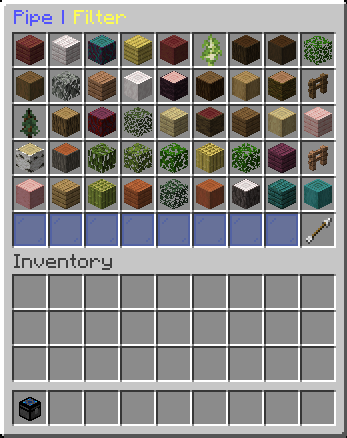
    Image that shows a big filter Image that shows a small filter

📄 Permissions

Permission Default Description
pipelesspipes.command.pipe true Use the /pipe command
pipelesspipes.command.language true Set the displayed language
pipelesspipes.command.pipe.addFilterItem true Add a filter item via command
pipelesspipes.command.pipe.admin false (op) Get a Pipewrench

👥 Team & Contributors

Tim2Byte
Tim2ByteOwner

⚙️ Compatibility

Environment
🖥️ Server-side
Loaders
paper
Minecraft Versions
1.21.8

🔗 Links

Modrinth Page