

Chat Channels
Lightweight chat channels plugin for Paper that lets players switch between channels and sync messages to Discord via webhooks.
📖About Chat Channels
💬 Chat-Channels
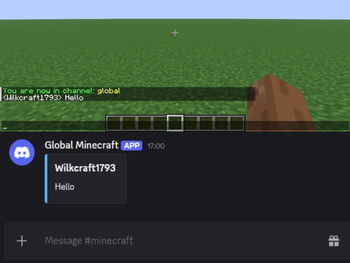
Chat-Channels is a lightweight and flexible Paper plugin that allows players to switch between multiple chat channels, each with its own formatting and full Discord integration (webhooks + bot sync) 🌐.
Perfect for servers that want clean, organized communication between players, staff, and communities — both in-game and on Discord.
✨ Features
- 💬 Multiple customizable chat channels
- 🔁 Switch channels easily with a command
- 🏷️ Custom prefixes per channel
- 👑 Staff-only channels (OP restricted)
- 🌐 Discord webhook integration (Minecraft → Discord)
- 🤖 Discord bot integration (Discord → Minecraft)
- 🔗 Sync specific Discord channels with in-game channels
- 🧑 Player avatars in Discord messages (webhooks)
- 🎨 Full color support (including HEX colors)
- 🧩 Optional Vault integration (prefix & suffix support)
- 🔄 Hot reload with automatic bot restart if token changes
- ⚡ Lightweight and simple configuration
- 📡 Global chat support (vanilla + optional Discord sync)
🧩 Vault Support (Optional)
If you install Vault (with plugins like LuckPerms):
- 👑 Player prefixes & suffixes are automatically applied
- 🎨 Colors are fully supported
- 💬 Chat formatting becomes more dynamic and customizable
No configuration required — just install Vault.
If Vault is not installed, the plugin will still work normally.
📜 Commands
/channel <name>- 💬 Switch to a channel/channel reload- 🔄 Reload configuration (OP only)
⚙️ Configuration
Each channel can be fully customized in config.yml:
discord:
  token: "" # Optional (enables Discord bot)

channels:
  global:
    prefix: "[Global]"
    webhook: "" # Optional
    discord-channel-id: "" # Optional

  staff:
    prefix: "[Staff]"
    webhook: "YOUR_WEBHOOK_URL" # Optional
    discord-channel-id: "" # Optional
- 🏷️
prefix→ How the channel appears in chat - 🌐
webhook→ Sends Minecraft messages to Discord (optional) - 🤖
discord-channel-id→ Sync Discord → Minecraft (optional) - 🔑
discord.token→ Enables the Discord bot (optional) - 🎨 Supports HEX colors (e.g.
&#FFAA00) - 🌐 Colors are automatically cleaned when sent to Discord
📦 Installation
- 📥 Download the latest
.jar - 📂 Place it in your server's
pluginsfolder - ▶️ Start or restart your server
- 📝 Edit
config.ymlto customize channels
⚙️ How it works
- 👤 Players are automatically assigned to the global channel
- 🔄 Use
/channelto switch between available channels - 💬 Messages are only visible to players in the same channel
- 🌐 Messages can be sent to Discord via webhooks (optional)
- 🤖 Discord messages can appear in Minecraft (optional)
🛡️ Channel System
🌍 Global channel
- Uses normal Minecraft chat
- Optional Discord sync
👑 Staff channel
- Only accessible by OP players
- Private communication
⚙️ Custom channels
- Fully configurable
- Unlimited possibilities
🤖 Discord Bot Setup
1️⃣ Create a Discord Application
- Go to: https://discord.com/developers/applications
- Click "New Application"
- Give it a name and create it
2️⃣ Create the Bot
Go to the "Bot" tab
Click "Add Bot"
Enable the following:
- ✅ Public Bot
- ✅ Server Members Intent
- ✅ Message Content Intent
Copy the TOKEN and put it in your
config.yml:
discord:
  token: "YOUR_BOT_TOKEN"
3️⃣ Invite the Bot to your Server
- Go to OAuth2 → URL Generator
- Select:
Scopes:
bot
Bot Permissions:
- View Channels
- Send Messages
- Read Message History
- Copy the generated URL
- Open it in your browser
- Add the bot to your server
🔗 How to get a Channel ID
- Go to Discord settings → Advanced
- Enable Developer Mode
- Right-click a channel → Copy ID
- Paste it in your config (optional):
discord-channel-id: "123456789012345678"
🌐 How to create a Webhook
- Go to your Discord channel
- Click ⚙️ Edit Channel
- Go to Integrations → Webhooks
- Click New Webhook
- Copy the webhook URL
Then paste it in your config (optional):
webhook: "https://discord.com/api/webhooks/..."
📝 Notes
- 👤 Only players can use commands
- ⚙️ Works with Paper 1.21+
- 📄 Uses YAML configuration
- 🌐 Discord integration is fully optional
🚀 Future ideas
- 🔐 Permission-based channels (LuckPerms deeper integration)
- 🎨 More chat formatting options
- 📊 Channel-specific settings (cooldowns, filters)
- 🖥️ GUI for channel selection
👤 Author
Developed by Wilkcraft
📄 License
This project is licensed under the MIT License - see the LICENSE file for details.
💬 Organize your server chat and connect it with Discord!