


Forge Config Screens
Allows Forge's configs to be configured directly in-game. Quick and easy with a beautiful design!
📖About Forge Config Screens





📖 About:
Config Menus for Forge allows for editing config files for all mods directly in-game without having to ever touch a single file again.
📚 Contents:
Most notably, this mod allows for: editing all of Forge's config types (including server configs, as well as syncing with an online server and other players), setting default configs to be used when creating new worlds, a powerful and immersive search, proper handling for editing lists with various data types, an easy to use interface for dealing with all configs added by a single mod at a glance, and much more.
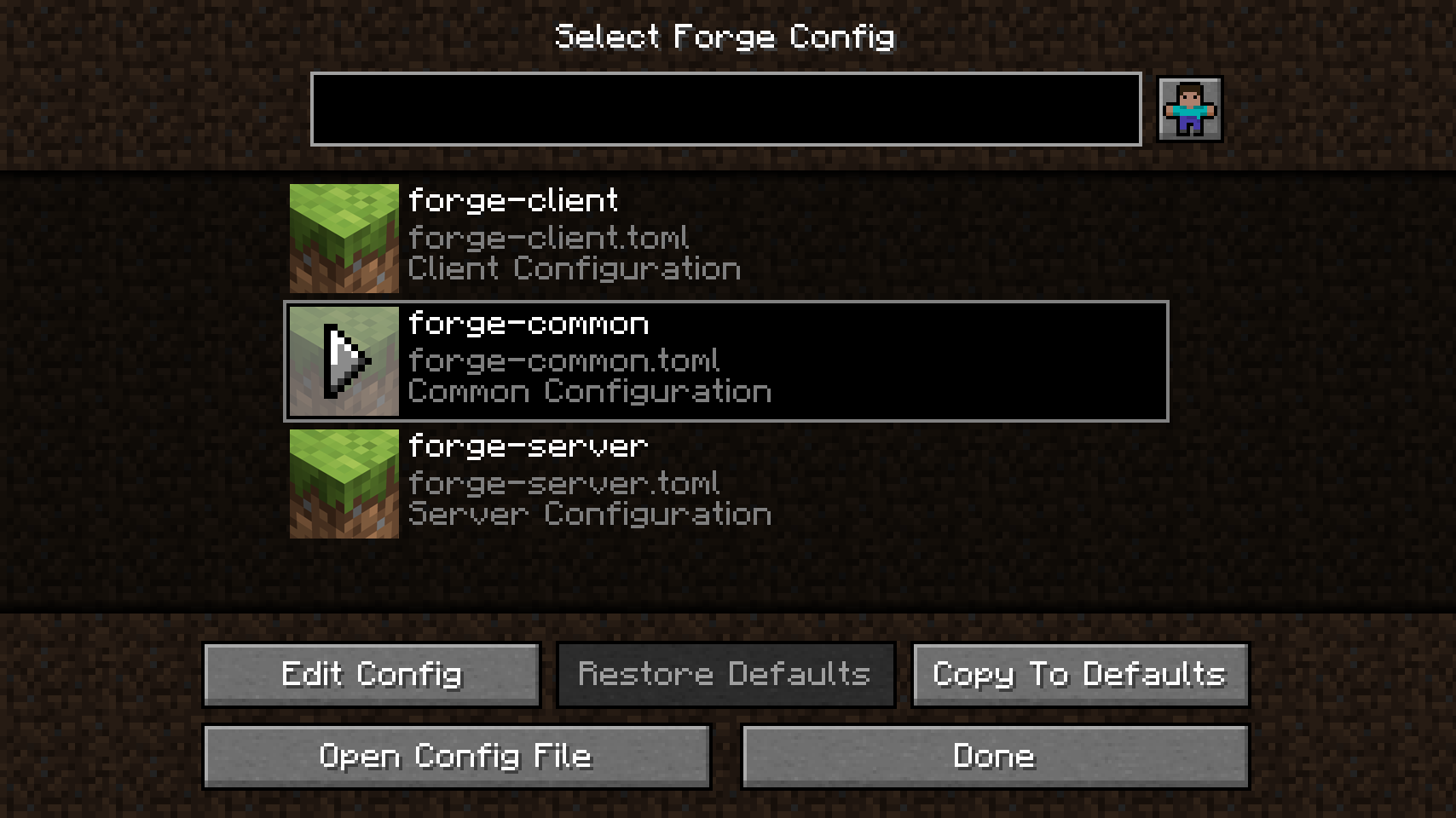
When opening a mods config menu you'll be greeted with a file selection screen listing all config files added by the mod. The restore defaults button allows for resetting a single config file as a whole (you can tell a config has been modified when it's name is in italics). There is also a button for opening the actual config file in an editor. The copy to defaults button allows you to set this config as a default config to be used whenever the config is recreated (mainly useful for server configs when creating new worlds).
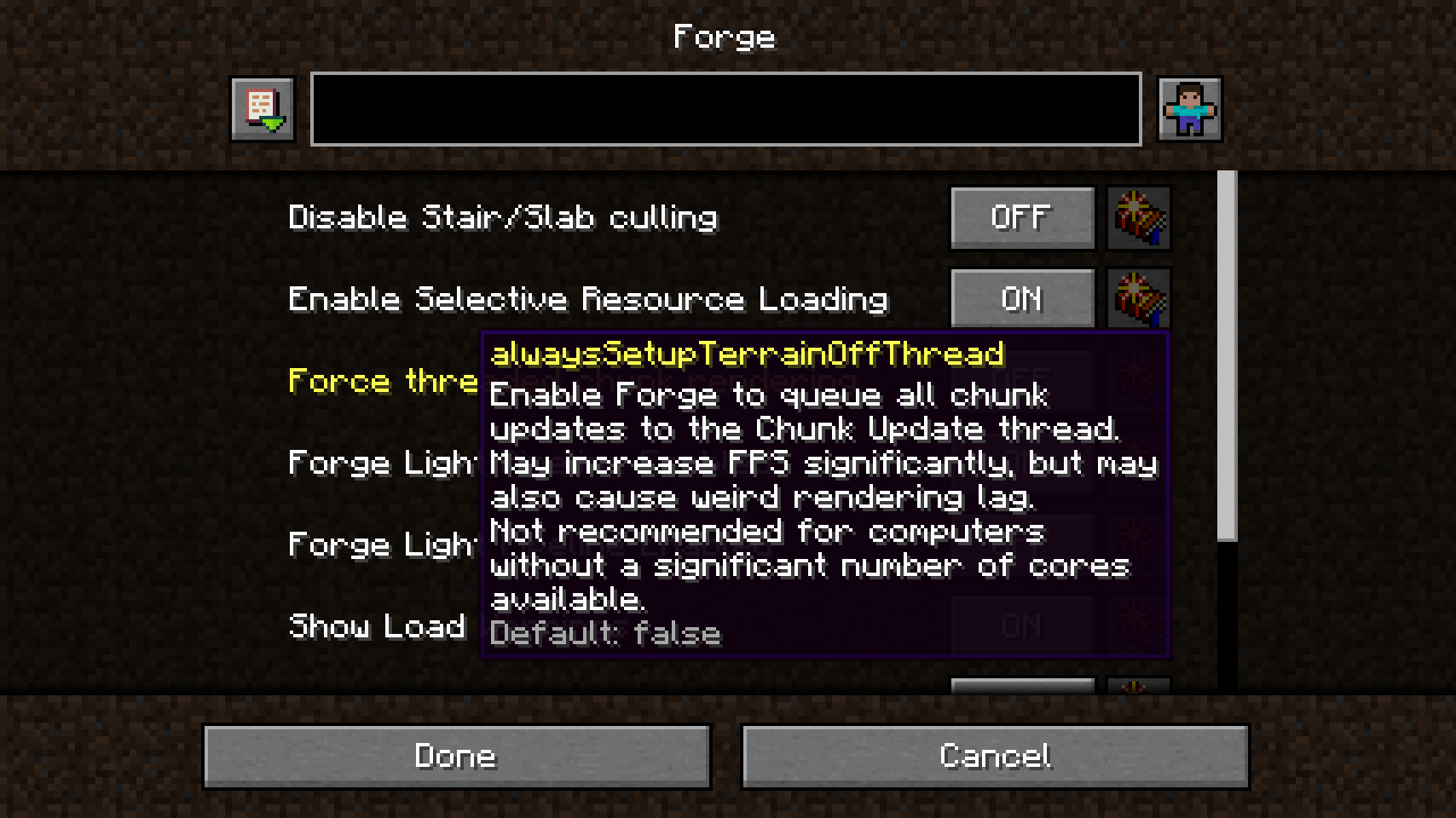
When a config is open, you'll find a big list with all config options and categories. The button to the right of every option will restore it's default value. When an option is hovered, a tooltip will provide additional information, including the internal key, description, range, allowed values, and the default value. On the bottom, the cancel button can be used for discarding changes, the done button will save all changes to the config file.
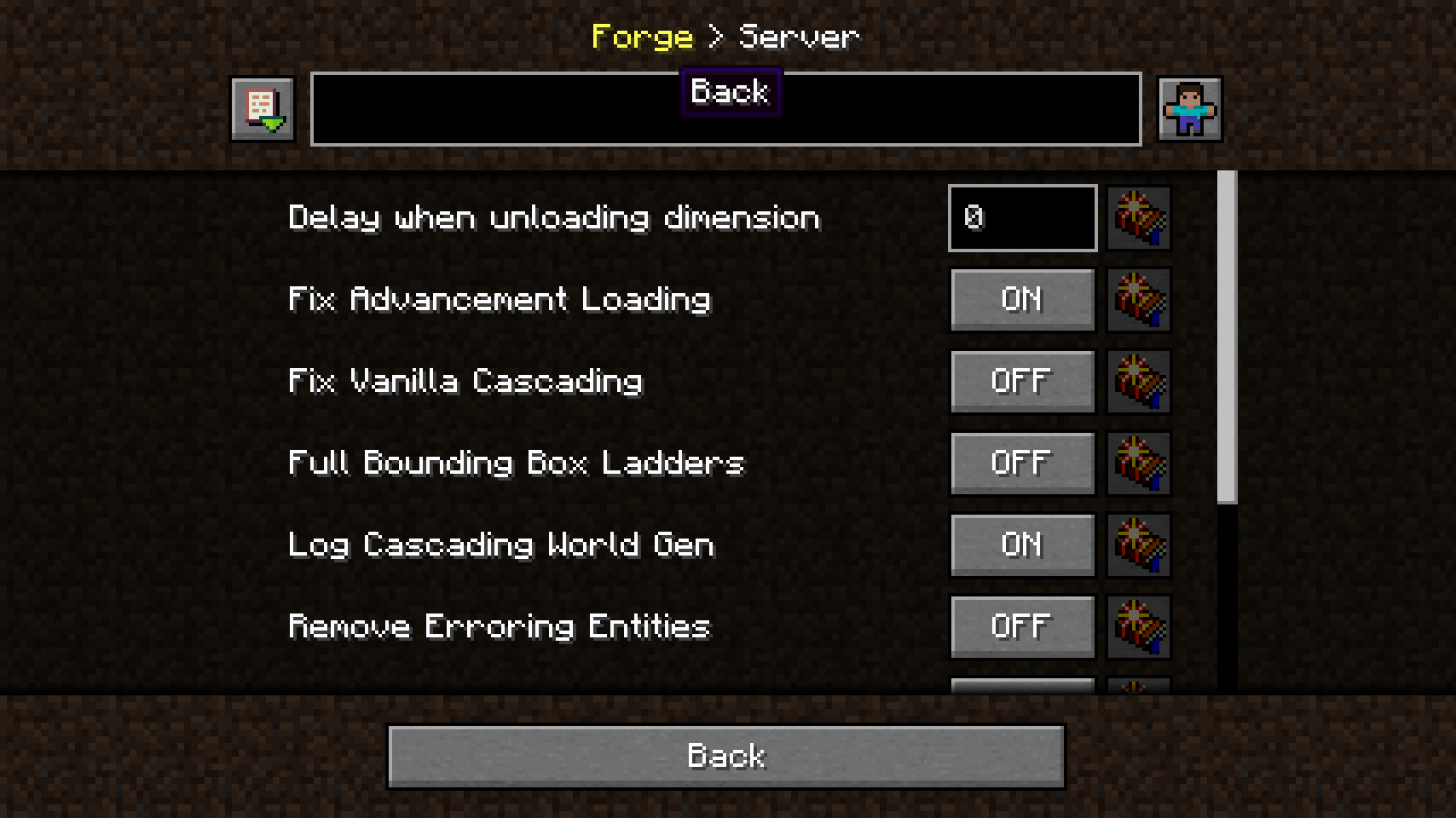
The path bar on top shows where you currently are within the active config file. But there's more: It also functions as a navigation bar. You can click on previous categories to go back to them.
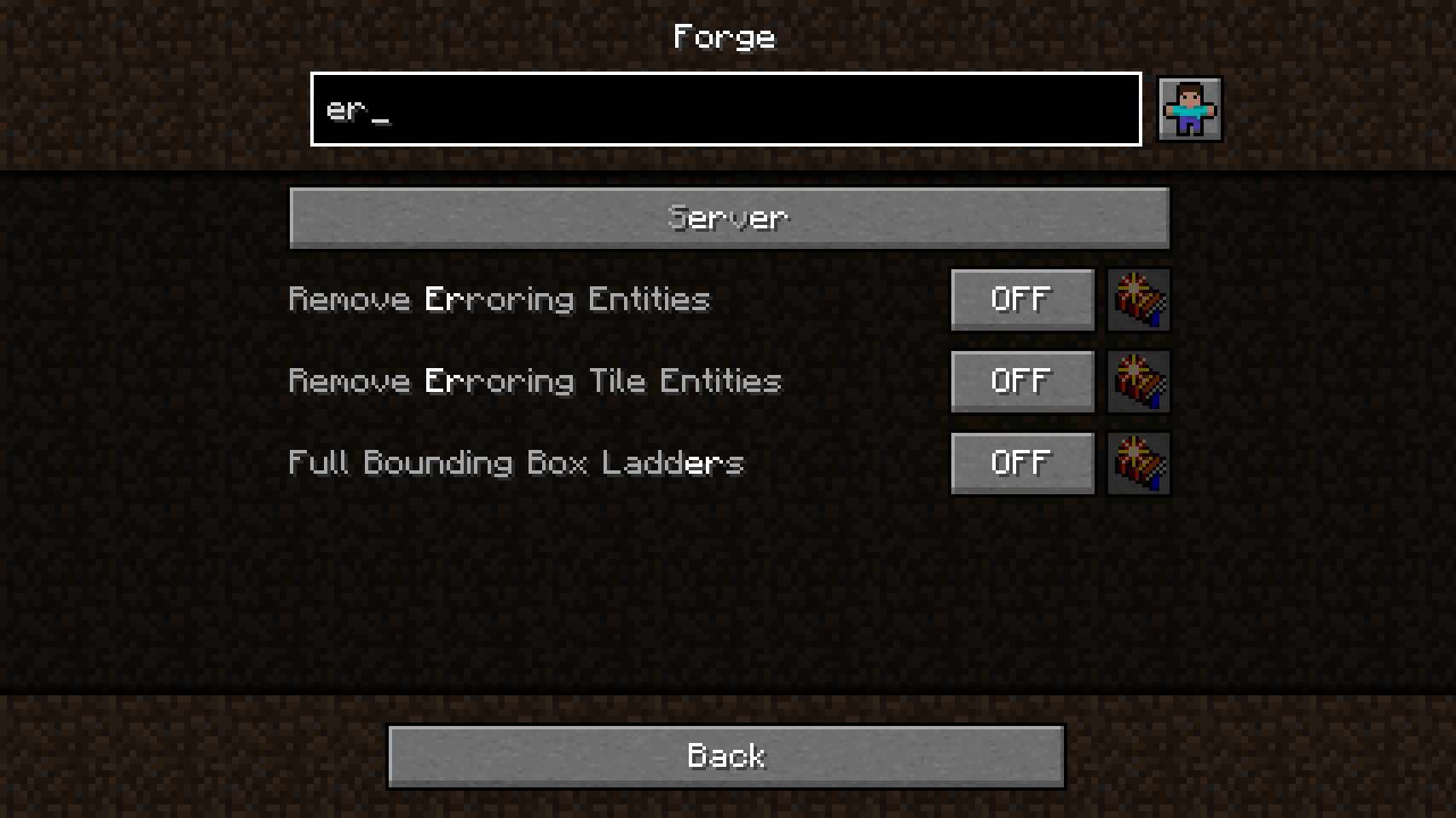
Searching is quite fancy, the current query is highlighted, and found entries are sorted accordingly. Results will be located in the current, as well as all subsequent categories. And best of all, the search field can be cleared again with a simple left-click.
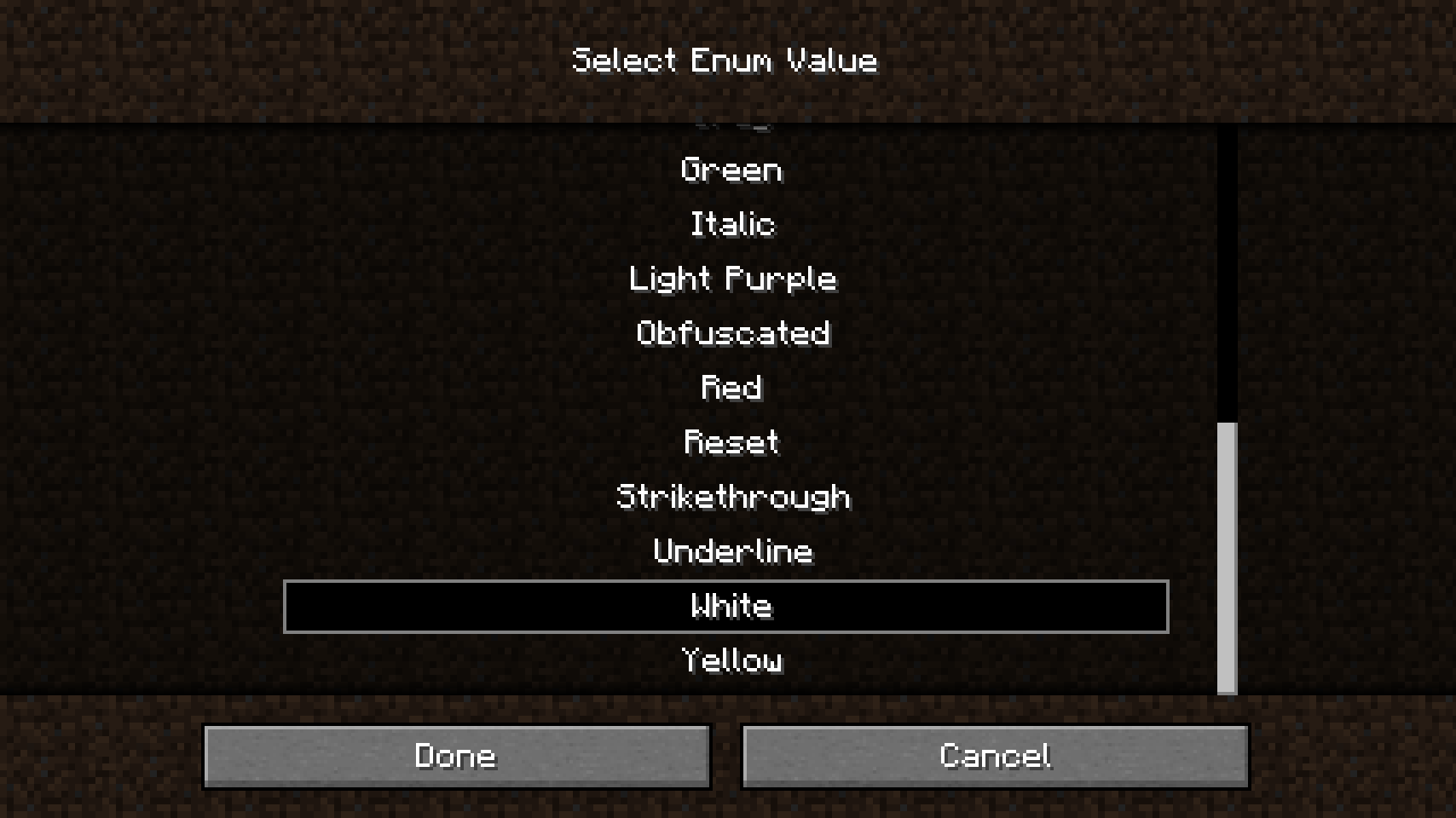
Editing more complex values such as strings, enums and lists is done via a separate screen. In this case, an enum value can be chosen from a list where all choices can be viewed at a glance.
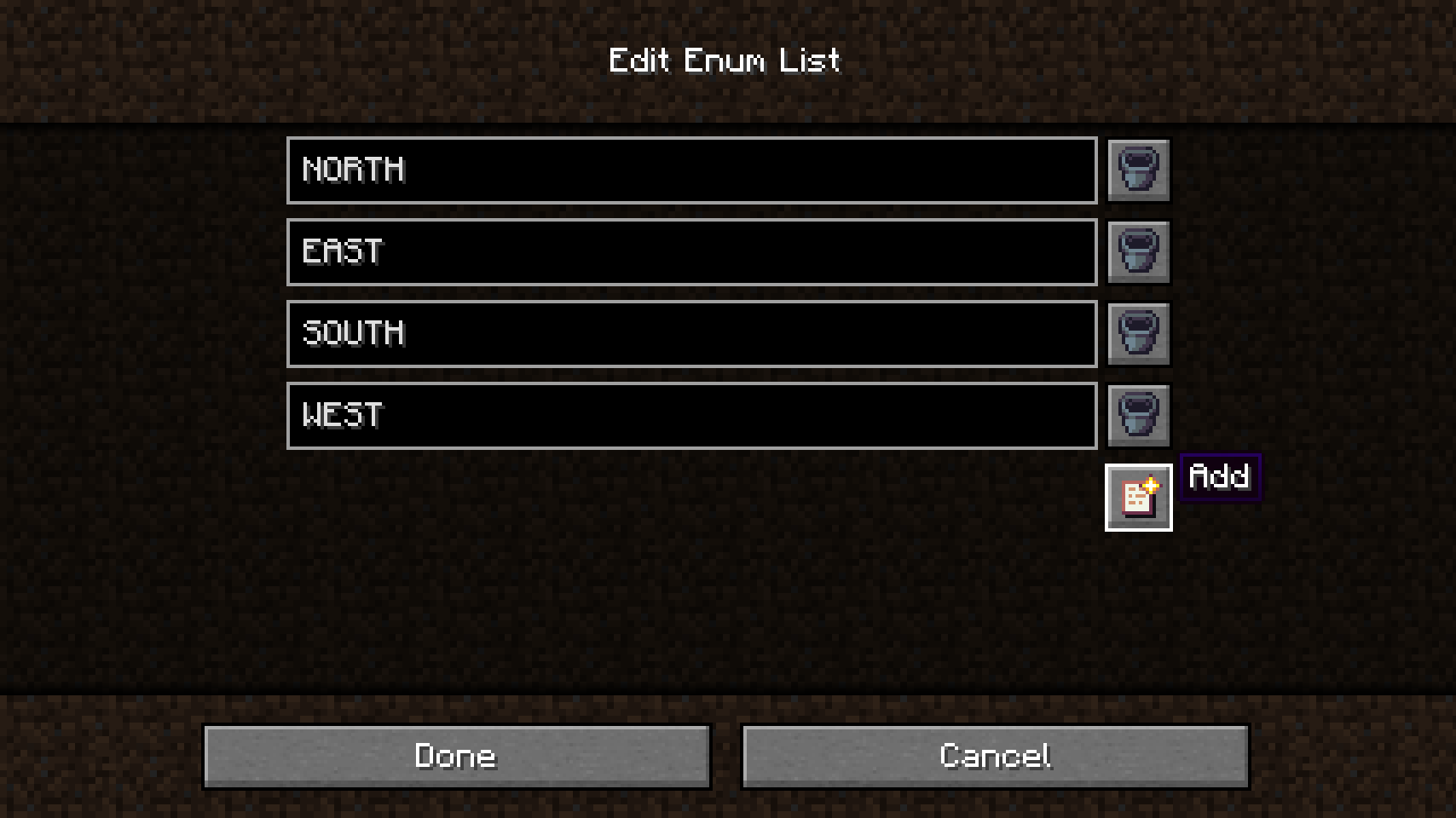
Editing lists on the other hand looks quite a bit different. All values are entered as strings and will be converted and checked automatically. Sometimes, the type of a list cannot be determined by Config Menus for Forge, so you'll be promted to choose the type yourself, or edit the option directly in the config file instead (not yet implemented). Also lists cannot be saved when invalid entries have been added, they need to be manually corrected before that.
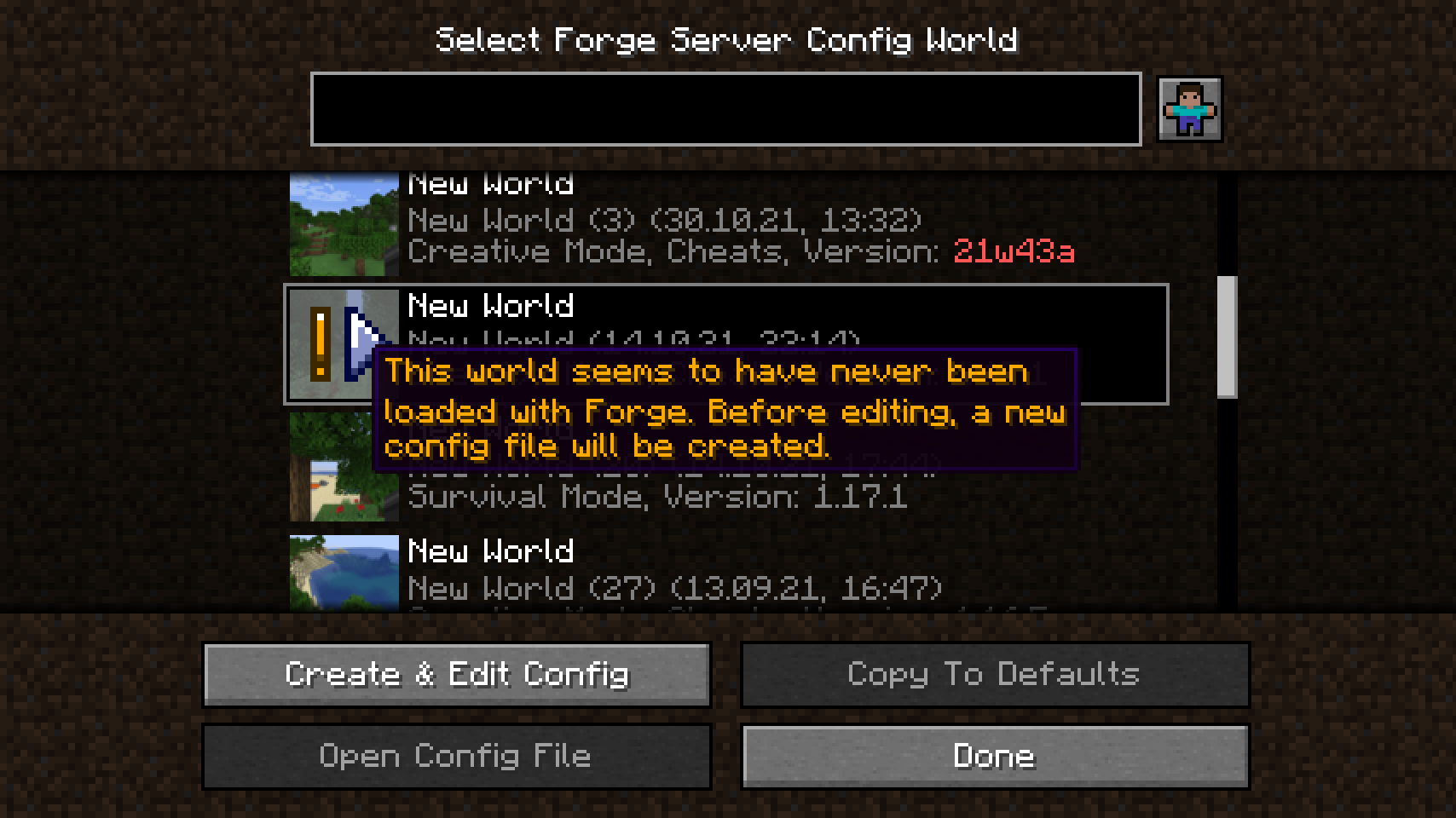
Editing server configs is a bit different from other config types. They exist for every single world, so to edit a server config from the main menu you'll have to select a world. When you're currently playing in a world this world will be selected automatically. This message is shown when Config Menus for Forge has to create the server config first as it doesn't exist yet.
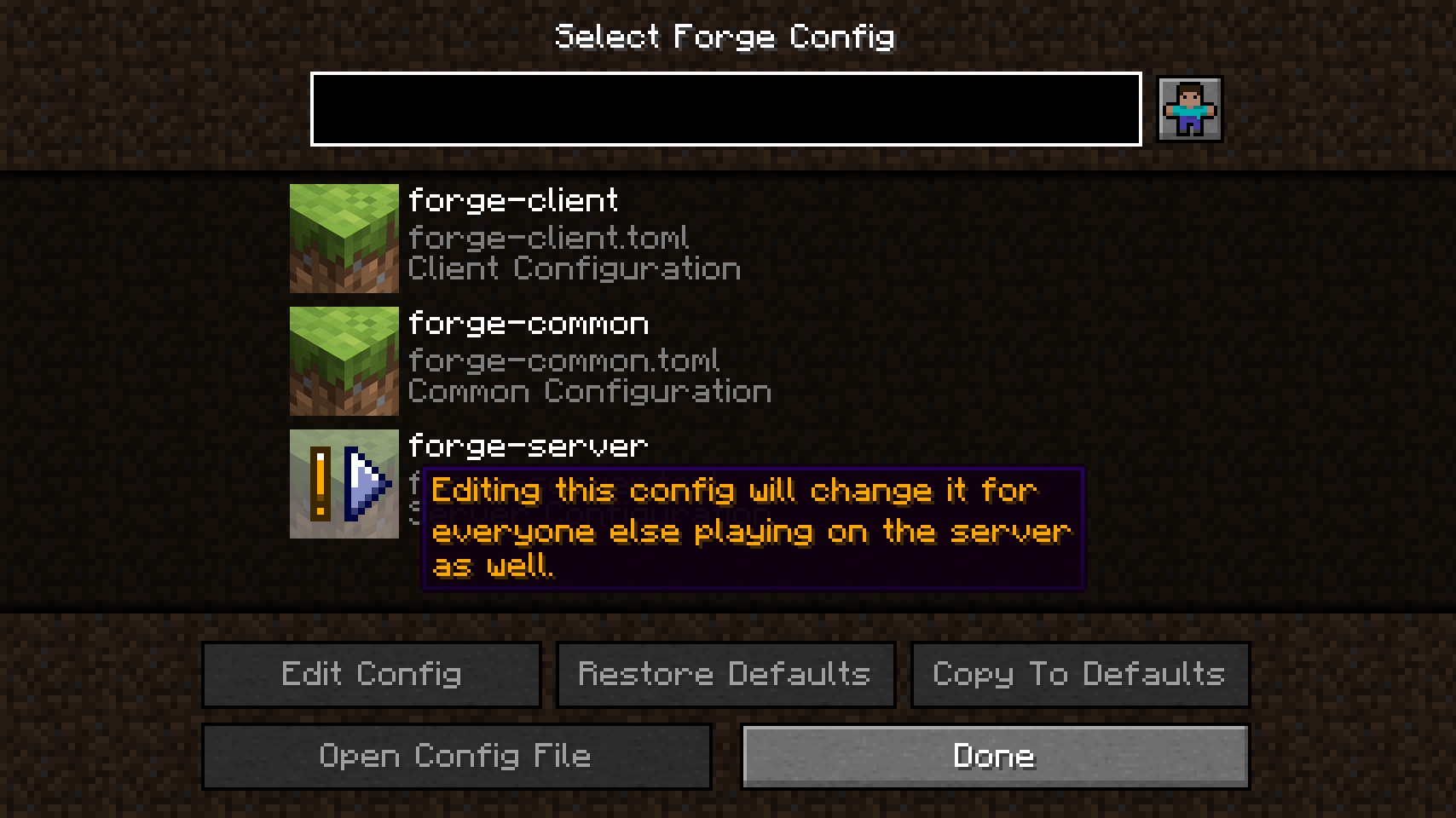
This message is shown when playing on an online server. Server configs can only be edited by server operators. When doing so, they'll be synced back to the server and from there to all other clients. In singleplayer no warnings are shown and no syncing happens as everything is done locally.
💡 FAQ:
Q: Can I edit server configs with this mod?
A: YES!
Q: Can I edit server configs while on a multiplayer server?
A: Yes again! The only limitations are that you need to be an operator on that server, and Config Menus for Forge needs to be installed server-side as well.
Q: I can't edit Forge's client config!
A: You have OptiFine installed, Forge's client config can't be used then. This has nothing to do with Config Menus for Forge.
Q: I'm a server owner and I don't want anyone to edit the server's configs while it is running.
A: Simply don't install Config Menus for Forge on your server, everything but editing server configs will still work for your players.
Q: I'm a mod developer and I already added custom backgrounds for Configured. Do I need to do it for this mod again?
A: No, Config Menus for Forge uses the resources provided by mods for Configured as well. There are other developer options planned for the future though. In case you're unsure about adding a custom background to the config menus for your mod, check out the instructions on the mod page for Configured.
Q: I'm a developer and I want my mod to use these config menus. What do I need to do?
A: Nothing really. Just ask your users to install this mod alongside yours. You don't need to add a dependency or anything like that.
🏆 Credits:
Developing Config Menus for Forge was helped and inspired by:
- MrCrayfish for their Configured mod, which Config Menus for Forge initially was a fork of
- Finalbossblues for their amazing icons available over on itch.io
- UnitedMel for allowing me to use the cute player icon from their BetterMenu resource pack







 |
 |
|
 |
 |
|
 |
 |
|
 |
 |
|
 |
 |
|