


Chat Notify
Plays a ping sound when your name is mentioned, with options to create custom alerts.
📖About Chat Notify

ChatNotify
Plays a ping sound when your name is mentioned, with options to create custom alerts.








Features
- Custom triggers - never worry about missing a message again!
- Choose notification sounds from the full range of built-in and resourcepack sound effects.
- Adjust sound volume and pitch per-notification.
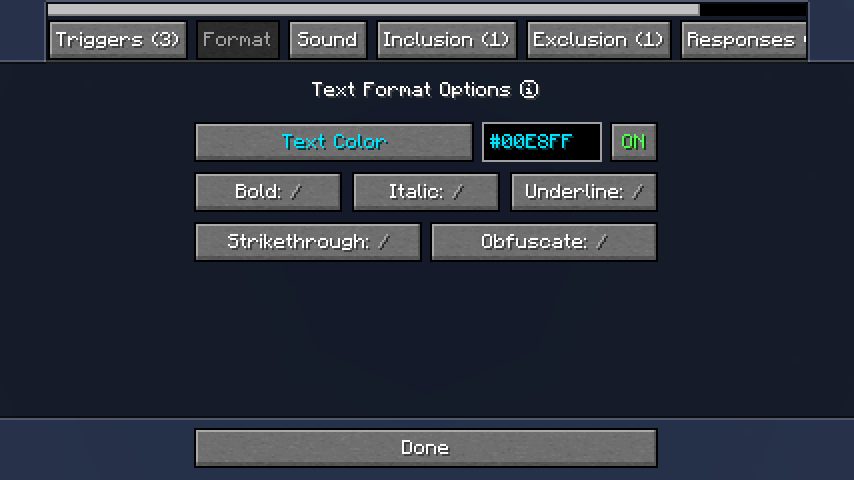
- Customize message highlighting with a color picker and format controls.
- Use regex patterns, inclusion and exclusion triggers for fine-grained control.
- Add automatic response messages or trigger CommandKeys
macros.
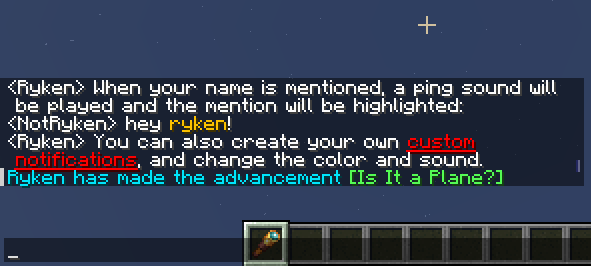
How it Works
- ChatNotify has a list of
Notifications, each of which has one or moreTriggers. - When a new message arrives in chat, ChatNotify starts checking the triggers of each notification.
- If a trigger matches the chat message, the corresponding notification will be activated. By
default;- The message will be edited to highlight the trigger that activated the notification.
- A sound will be played.
- You can create and customize your own notifications via the options screen, which can be opened
via ModMenu on Fabric, or the mod list on NeoForge.
Setup
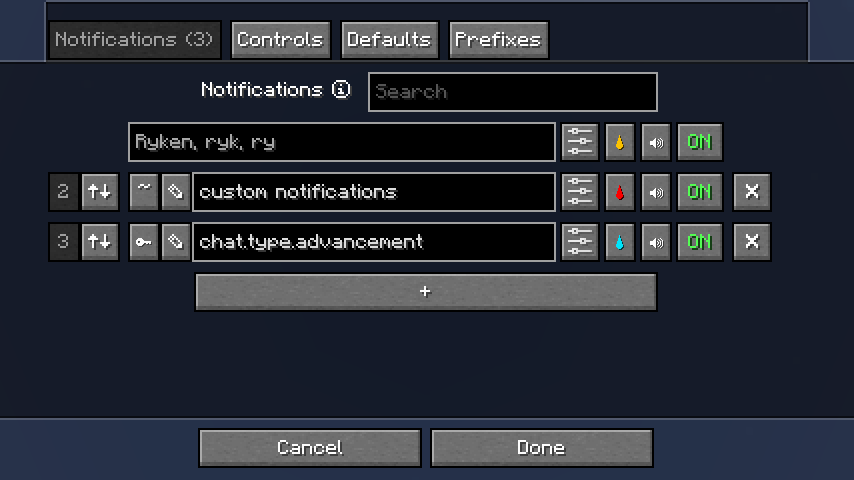
When you open the options screen, you'll see a list of notifications. You can set the notification
trigger, color and sound here.
Trigger types
To change the trigger type, click the ~ button to the left of the text field.
- Normal
- This is what you probably want to use at first. Normal triggers aren't case-sensitive (so a
triggerhellowill match messages containingHELLO), and they don't match partial words (so
a triggerrockwill matchrock!but notrocketorrock932).
- This is what you probably want to use at first. Normal triggers aren't case-sensitive (so a
- Key
- In vanilla, each type of chat message has a different translation key (such as
chat.type.text
orchat.type.advancement.task). You can use a key-type trigger to match all messages of that
type. - Note: Many servers remove keys from messages, which will prevent this type of key from working.
To check if a message has a key, use the trigger editor (see below).
- In vanilla, each type of chat message has a different translation key (such as
- Regex
- If you want more precise control, you can switch to this type and enter a regex pattern in the
text field. - Consider using the trigger editor (see below) and/or a tool such
as regex101 to help create regex patterns.
- If you want more precise control, you can switch to this type and enter a regex pattern in the
Trigger editor
Click the ✎ button to the left of the text field to open the trigger editor.
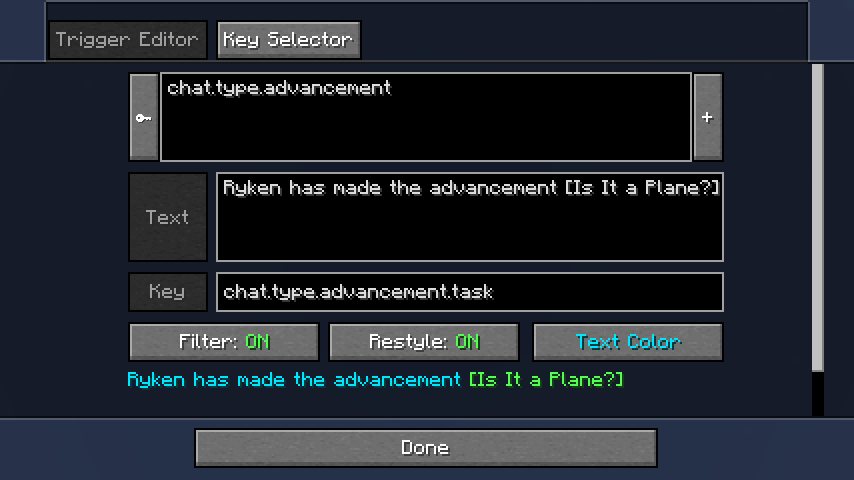
In the trigger editor, recent chat messages will be displayed in a list (most recent first). Use theFilter and Restyle buttons to preview the effect of your trigger.
Click on a message to view the text and translation key (if any) so you can copy them.
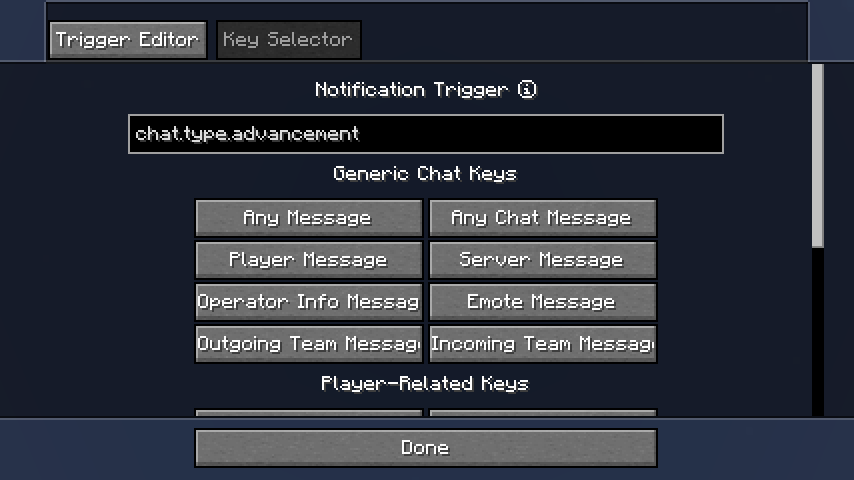
Additionally, some common keys are available for selection in the Key Selector.
Trigger List
If you want to add more triggers, go back to Notifications and click on the options button to the
left of the color button. You'll now see a list of triggers, which you can edit as desired.
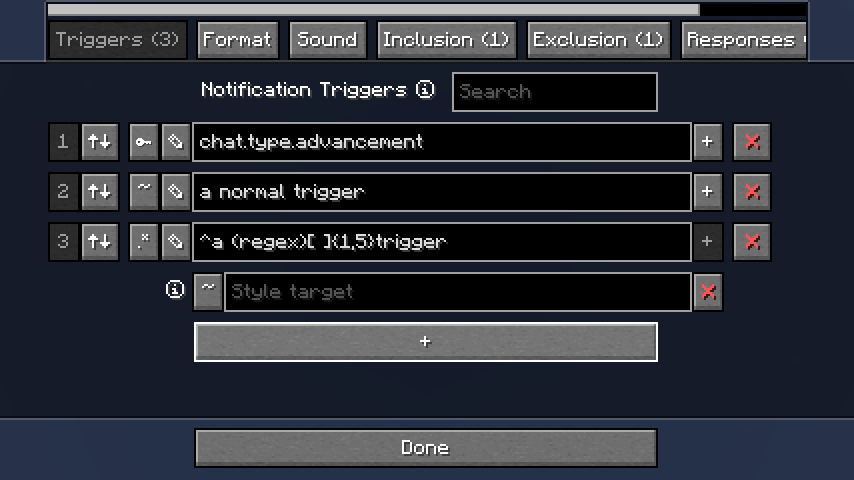
Style target
Sometimes for key-type and regex-type triggers you may want to highlight a different part of the
message to what the trigger matches.
Adding a style target allows you to specify what part of the message should be highlighted. If the
style target doesn't match the message, the trigger will be used as normal.
Format
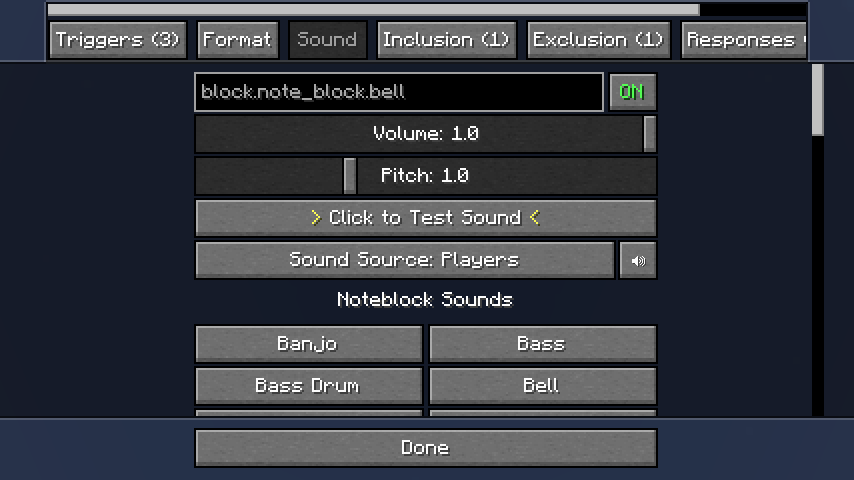
Sound
All built-in and resourcepack sounds can be used (click on the text field). Additionally, some
sounds are available for quick selection.
The sound source controls which of Minecraft's volume control sliders will affect the notification
sound, in addition to the volume control slider provided here.
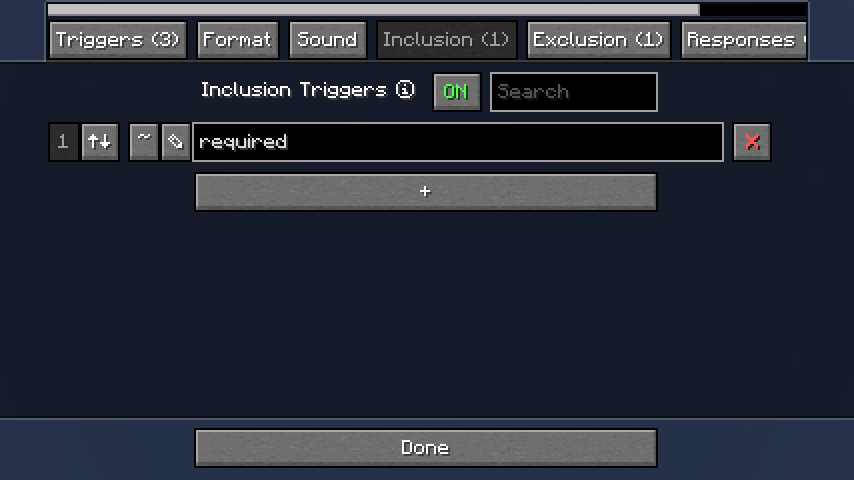
Inclusion
Inclusion triggers do nothing by themselves, but if a trigger from the Triggers list matches a
message, ChatNotify will check all the triggers in this list and only activate the notification if
they all match.
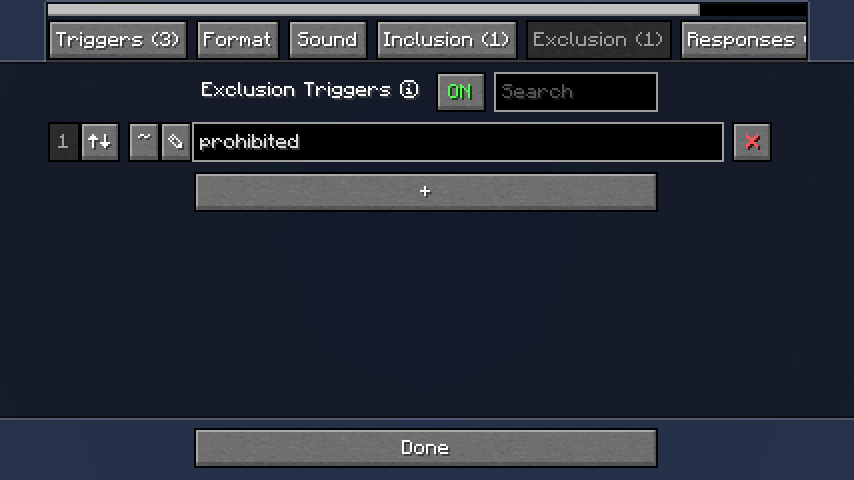
Exclusion
Exclusion triggers are the reverse of Inclusion triggers; before activating a notification,
ChatNotify will check all the triggers in this list and only proceed with activation if none of them
match the message.
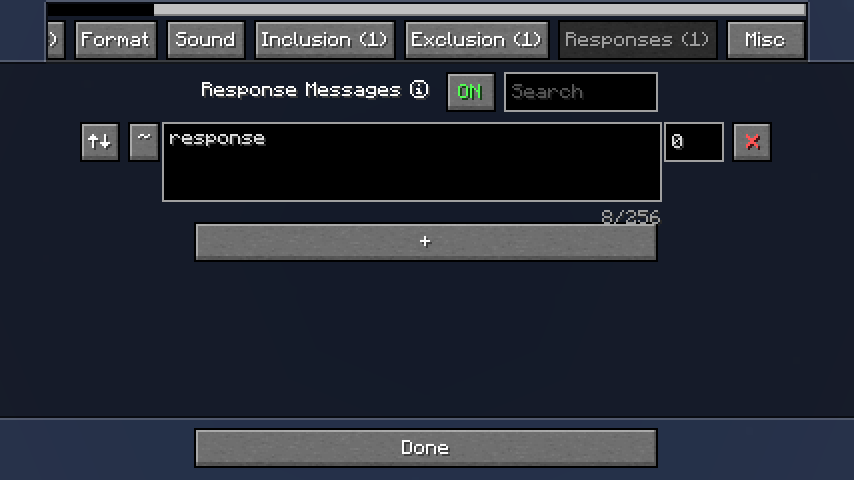
Response
Response messages will be sent in chat when the notification is activated.
Use with caution, as you can easily make a notification send a response which triggers the
notification again in a loop, which will spam chat and then crash the game.
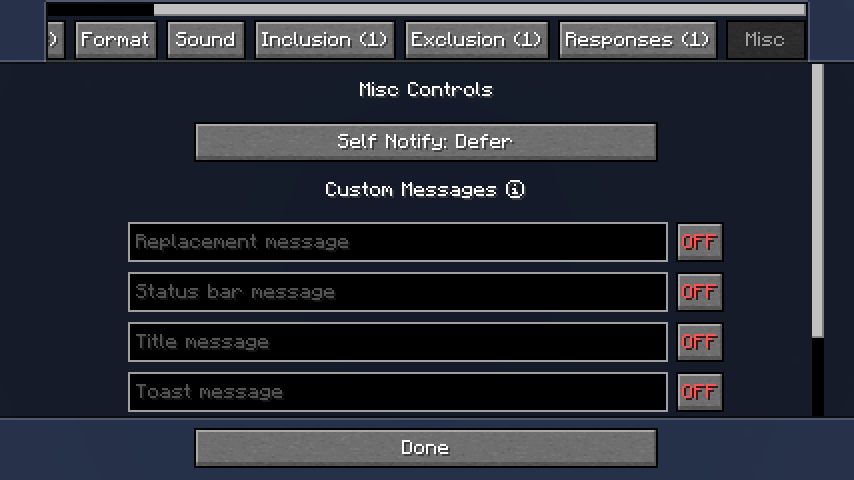
Custom Messages
These are special ways of showing notifications, as an alternative to the normal 'play a sound and
highlight the message'.
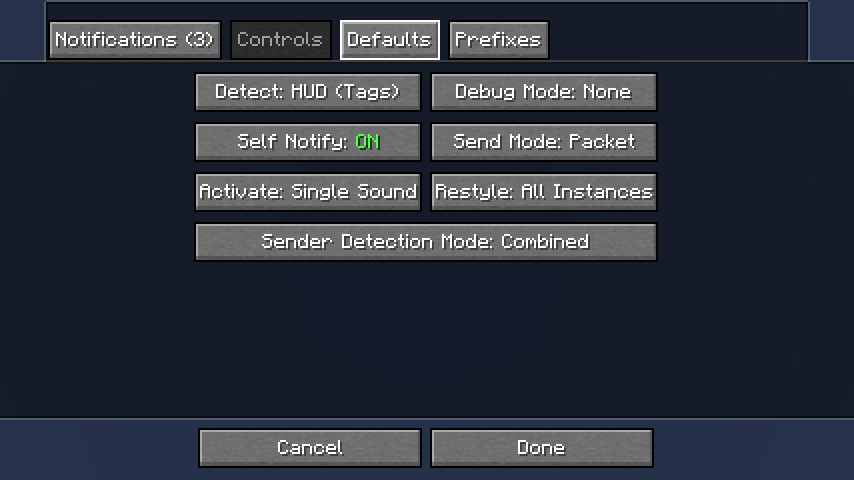
Controls
These options apply to all notifications, and control various aspects of ChatNotify's behavior. You
should not generally need to change them (you can if you want, of course), but the Detect andSend Mode options can be useful in certain cases of conflict with other mods.
Defaults
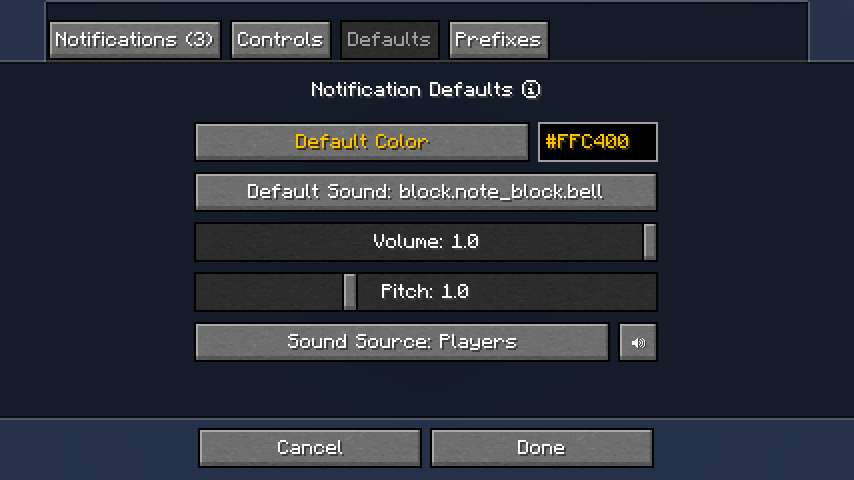
If you want new notifications to have a particular color or sound by default, you can set that here.
Prefixes
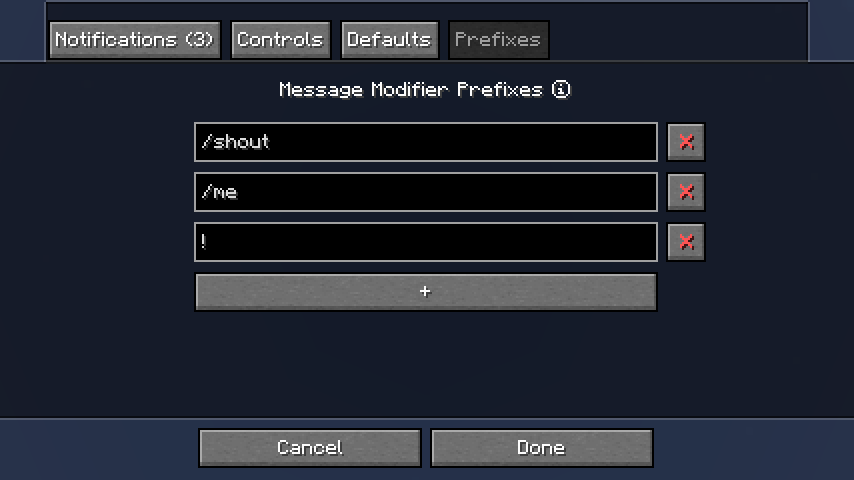
When ChatNotify is not using Chat Heads to detect the message sender, it will store your sent
messages and compare them to incoming messages to determine which messages were sent by you. If
you're on a server that modifies your messages, that system may not work properly, so prefixes can
help.
If you're still being notified on every message that you send (because it contains your name) try
installing Chat Heads and setting Sender Detection Mode
to Combined in the Controls tab.
GUI Tweaks
Special WidgetsChatNotify uses a range of custom GUI widgets which behave differently to normal Minecraft.
- Color (
🌢) and sound (🔊) status buttons on the options screen support right-click to toggle
status. - Text fields have been modified to support double-clicking, triple-clicking or clicking and
dragging to select text. - Text fields have also been modified to support
CTRL+Zto undo andCTRL+Yto redo edits. Note
that edit history will be erased whenever the GUI is refreshed, which often happens when you
click on a different widget. - Fullscreen overlay widgets such as the color picker and drop-down text field support clicking
outside to cancel and close.
- ChatNotify modifies the chat height slider (in Minecraft's
Chat Settings) to increase the
maximum value to500px. - Your existing setting will stay the same unless you decide to change it.
Dependencies
Fabric: Fabric API, ModMenu
NeoForge: None
Compatibility
If you encounter issues, please report on Discord or GitHub.


