
MINECRAFTBIBLE
Loading...

Display GIFs PNGs & JPG in Screen
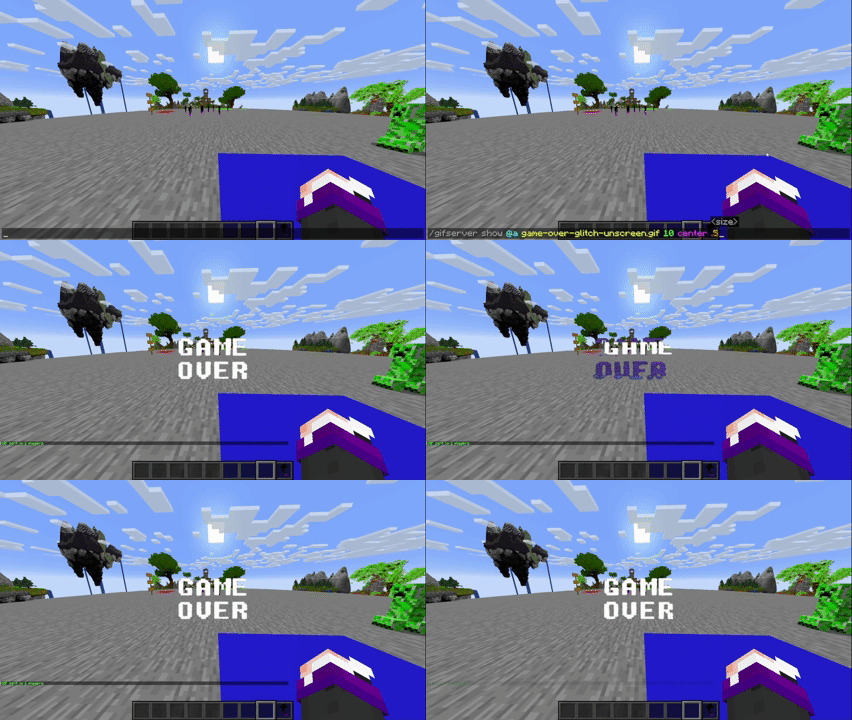
/media show <name> <duration> <position> <size> → Display a GIF, PNG, or JPG locally (client-side)./media show sunny.gif 10 center 1.0/mediaserver show <player|@a|@p|@r> <name> <duration> <position> <size> → Send a GIF, PNG, or JPG to specified players (server-side, requires OP permissions)./mediaserver show @a example.gif 15 topleft 2.0/mediaserver playlocal <name> <duration> <position> <scale> → Play a GIF, PNG, or JPG directly from your local folder (config/AnimatedFrames/) without uploading it to the server./mediaserver playlocal example.png 10 center 1.0/media show, since it can reproduce GIFs, PNGs, and JPGs on servers as well, offering better performance and compatibility./media stop → Stop the current GIF, PNG, or JPG (client-side)./mediaserver stop <player|@a|@p|@r> → Stop the GIF, PNG, or JPG for specified players (server-side)./media list / /mediaserver list → List available GIFs, PNGs, and JPGs in the client or server folder./media help / /mediaserver help → Show command help.config/AnimatedFrames/client_media/ (created automatically on first run).config/AnimatedFrames/server_media/ (created automatically).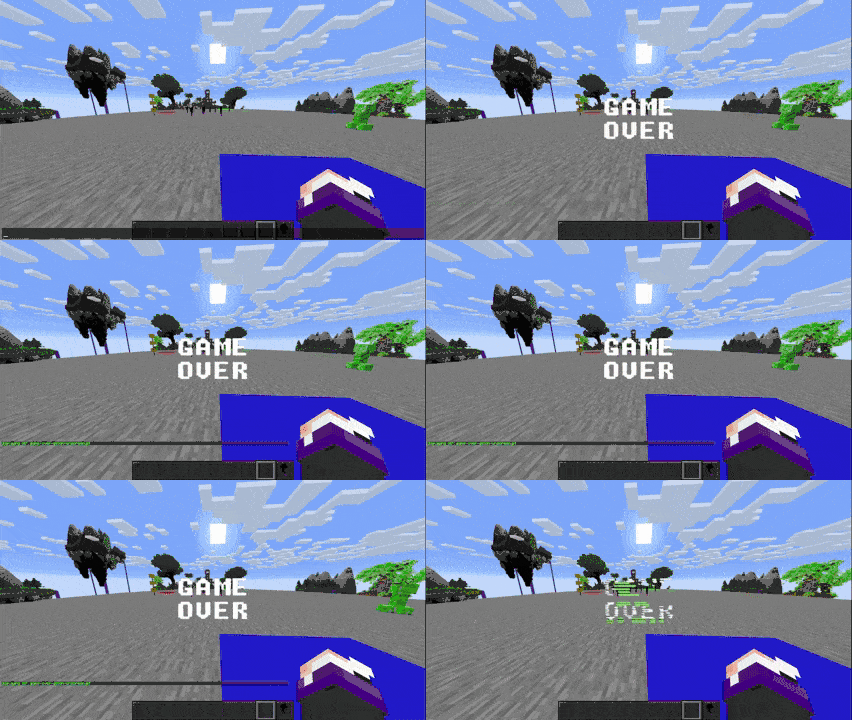
Folder Location:
Files go in the mod’s folder within your Minecraft directory:.minecraft/config/AnimatedFrames/client_media/
If the folder doesn’t exist, it will be created automatically when the mod runs.
Steps:
config/AnimatedFrames/client_media/..gif, .png, or .jpg)./media show sunny.gif 10 center 1.0/media show..minecraft/mods/ folder.Folder Location:
Files go in the mod’s folder in the server directory:config/AnimatedFrames/server_media/
If the folder doesn’t exist, it will be created automatically when the mod runs.
Steps:
config/AnimatedFrames/server_media/..gif, .png, or .jpg (e.g., tutorial.png)./mediaserver show @a sunny.gif 15 center 1.0mods/ folder./mediaserver.@a for all players).